
The two-minute version
- Download Lookout (free) from the App Store.
- Plug the iPhone 17 into a car charger and put it in a low mount. Open Lookout and allow the camera, microphone and location.
- The back camera shows the road and the front camera shows the cabin.
- Turn on Dashcam Mode and start recording while you are still parked.
- Front, back and combined videos are saved on your iPhone 17. Nothing is uploaded.

Lookout · Free dual camera recorder
Lookout: use your iPhone 17 as a dashcam
Lookout records the road and the cabin on the iPhone 17 range at the same time, saves them as separate files and adds an optional speed, GPS and time overlay, all on the phone.
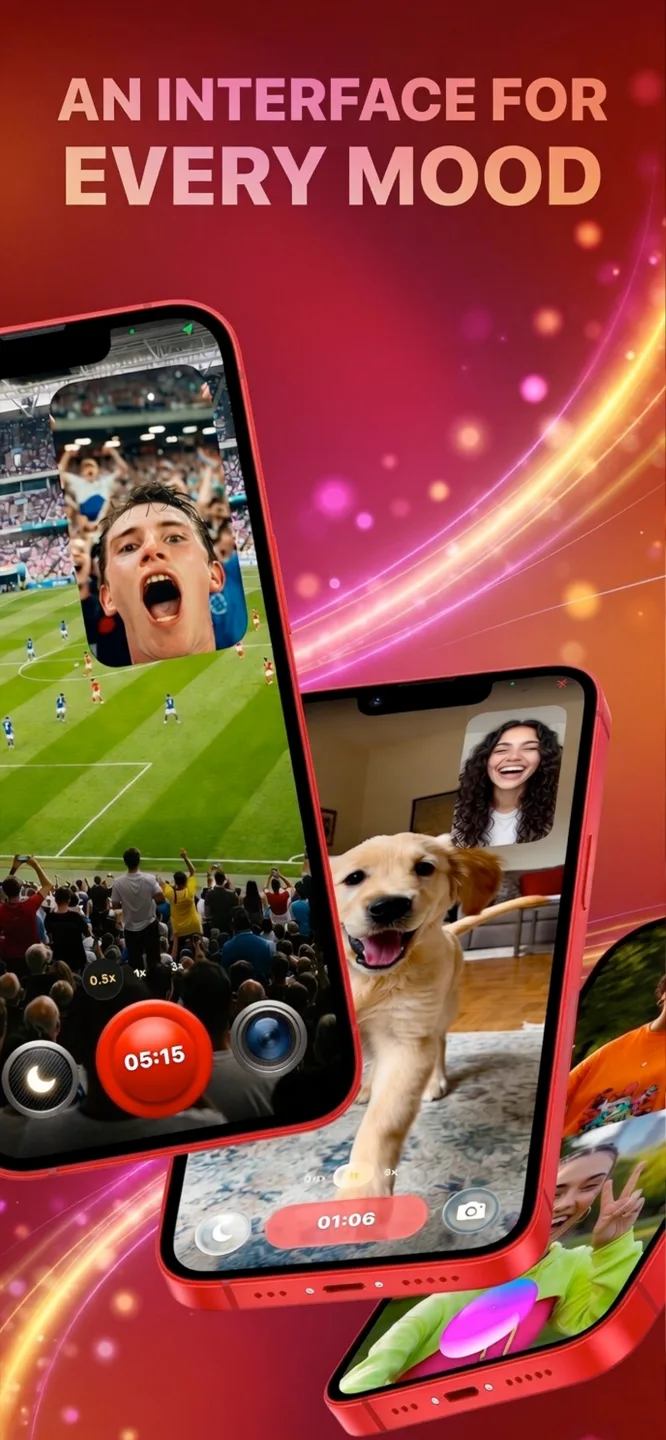
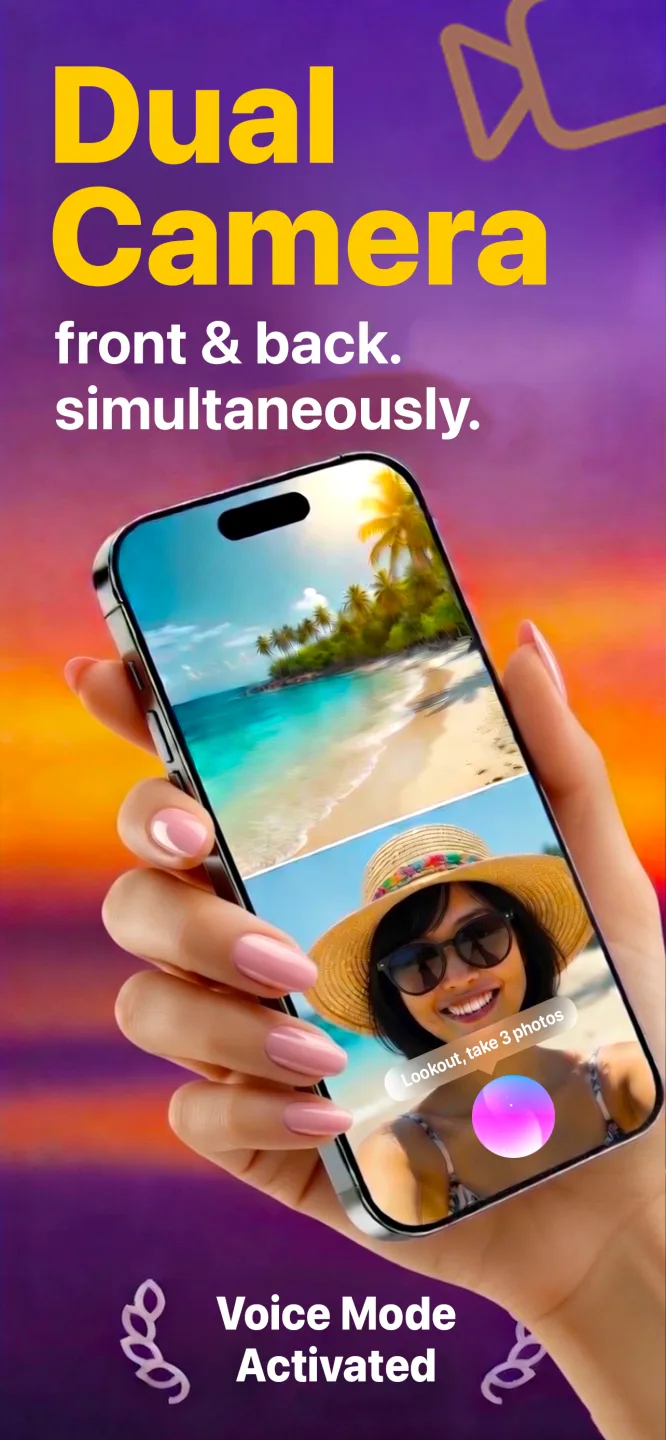
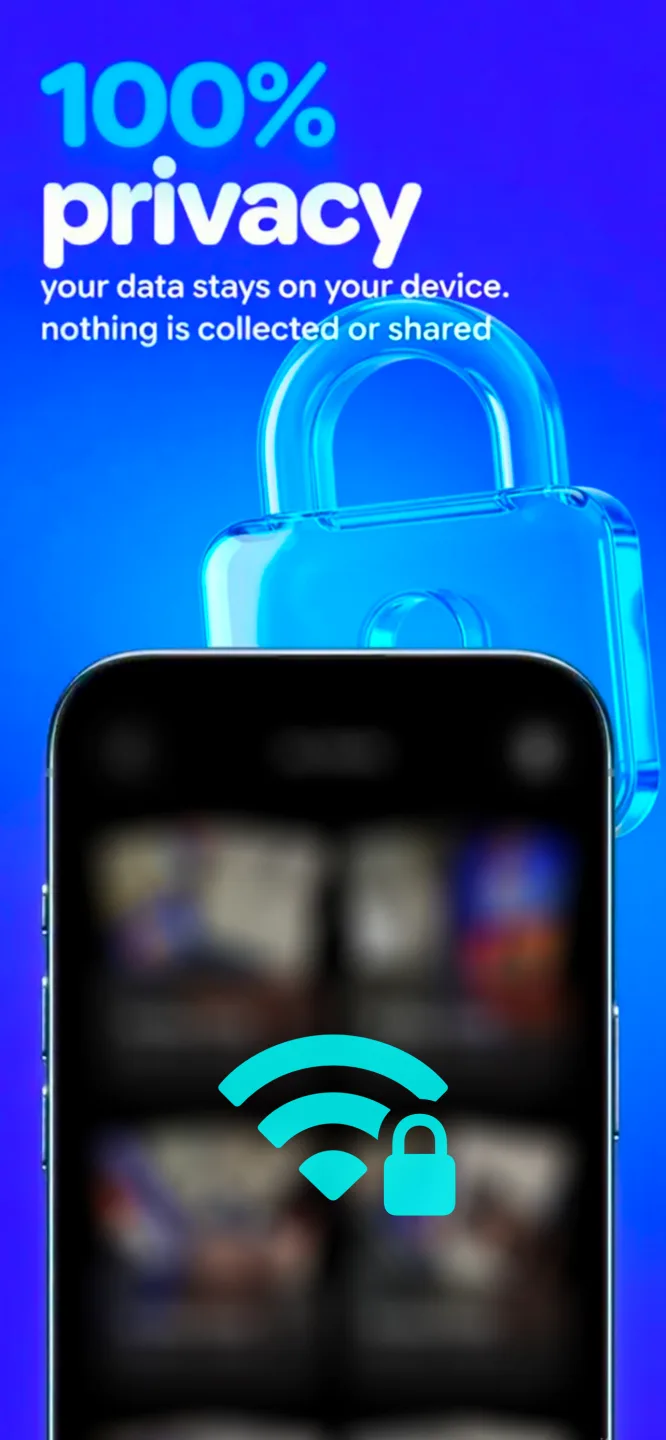
Free to download · Lookout Pro in-app purchase · iPhone 17, iPhone Air, 17 Pro and 17 Pro Max · Records, does not edit. What Lookout is
Reviewed 13 November 2026. Model details were checked against Apple's own pages, heat guidance against Apple Support and Lookout features against its App Store listing. Sources are listed at the end of this guide.
| iPhone 17 as a dashcam | Answer |
|---|---|
| Works? | Yes, iPhone 17, Air, 17 Pro and 17 Pro Max |
| Built in | Dual Capture in the Camera app |
| Why use an app | Speed and GPS overlay, separate files, black-screen recording |
| Cabin camera | Center Stage front camera with a square sensor |
| Base storage | 256 GB |
In this guide: Models · Dual Capture vs an app · Center Stage cabin view · Setup · Heat · FAQ
Which iPhone 17 model do you have?
| Model | Base storage | Charging port | Worth knowing for driving |
|---|---|---|---|
| iPhone 17 | 256 GB | USB-C | Dual Capture and Center Stage front camera |
| iPhone Air | 256 GB | USB-C | Thinnest model: watch for heat in sun |
| iPhone 17 Pro | 256 GB | USB-C | Vapor chamber cooling for long recordings |
| iPhone 17 Pro Max | 256 GB | USB-C | Vapor chamber and the largest battery |
Is iPhone 17 Dual Capture enough for a dashcam?
Apple says the iPhone 17 can record on the front and rear cameras at once with Dual Capture (Apple Newsroom). It is great for a quick clip. For driving it falls short in a few ways:
| Camera app Dual Capture | Lookout Dashcam Mode | |
|---|---|---|
| Both cameras at once | Yes | Yes |
| Speed, GPS, time overlay | No | Yes |
| Separate road and cabin files | No, one combined video | Yes, plus a combined video |
| Screen off while recording | No | Yes, black-screen recording |
Does Center Stage help the cabin view?
The iPhone 17 range has a Center Stage front camera with Apple's first square front sensor (Apple Newsroom), which is built to fit more people in frame. For the cabin that means the driver and passengers are more likely to be in shot, though how much of it any app uses can vary.
iPhone 17 dash cam setup, step by step
- Free up space. Settings > General > iPhone Storage. Two cameras use far more space than one, and there is no loop recording.
- Plug in. Use a car charger and a short USB-C cable. Two cameras and GPS drain the battery fast.
- Mount it low on a vent or the dashboard, with the back camera on the road and nothing covering the lenses.
- Open Lookout and allow the camera, microphone and location. Put the horizon a third of the way down the road preview.
- Turn on Dashcam Mode for the speed, GPS and date and time overlay.
- Start recording while parked, by tapping, saying "Hey Lookout" or using your Apple Watch, then switch to black-screen recording.
Full routine for each drive: how to use iPhone as a dashcam. Kit and settings: how to convert iPhone into dashcam.
Will the iPhone 17 overheat in the car?
Apple says iPhones are designed for 0 to 35 degrees Celsius (32 to 95 Fahrenheit) and may limit the camera or stop to cool down when too hot (Apple Support). Keep the phone out of direct sun, take off a thick case and point an air vent at it.
Whatever the model, an iPhone with Lookout has no loop recording, no impact sensor that locks a clip and no parking mode, and you start it yourself each drive. For always-on cover, see iPhone vs dash cam.
Driving in heavy traffic shows up in your pulse. If you wear an Apple Watch, 70 BPM lines up the heart rate Apple Health records with the events in your calendar, so you can see which drives were the stressful ones. 70 BPM is not a medical device. In an emergency, call your local emergency number.