
How to Pair a Game Controller With the New Apple TV 4K (A19, 2026)
1. The short answer
On the new Apple TV 4K, open Settings, then Remotes and Devices, then Bluetooth, put your controller into pairing mode and select it when it appears. That is all most controllers need. Test it straight away with Captain Star, a top-down arcade shooter for Apple TV that is played with a paired controller, and keep 70 BPM on your iPhone for winding down afterwards.

70 BPM · Free heart rate app for iPhone
70 BPM: see what caused every heart rate spike
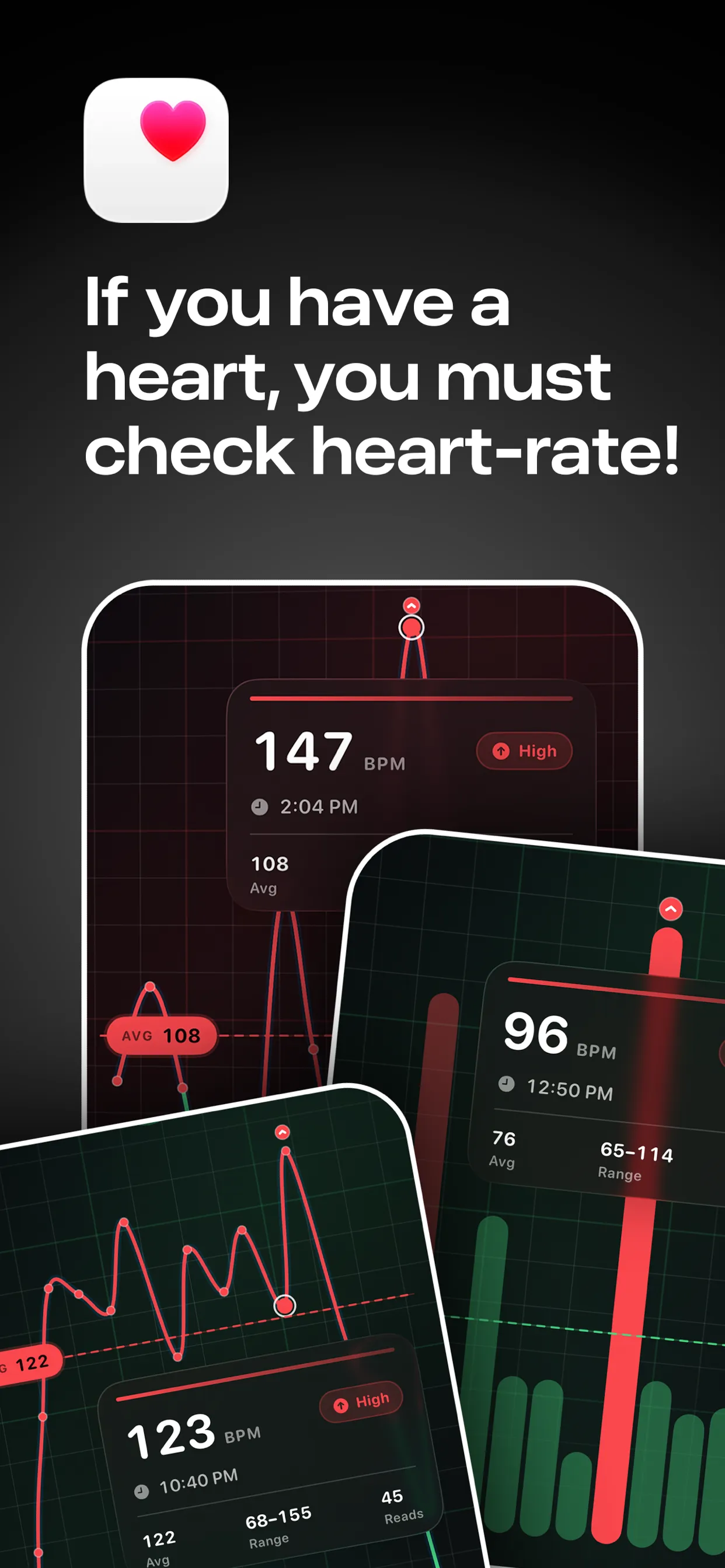
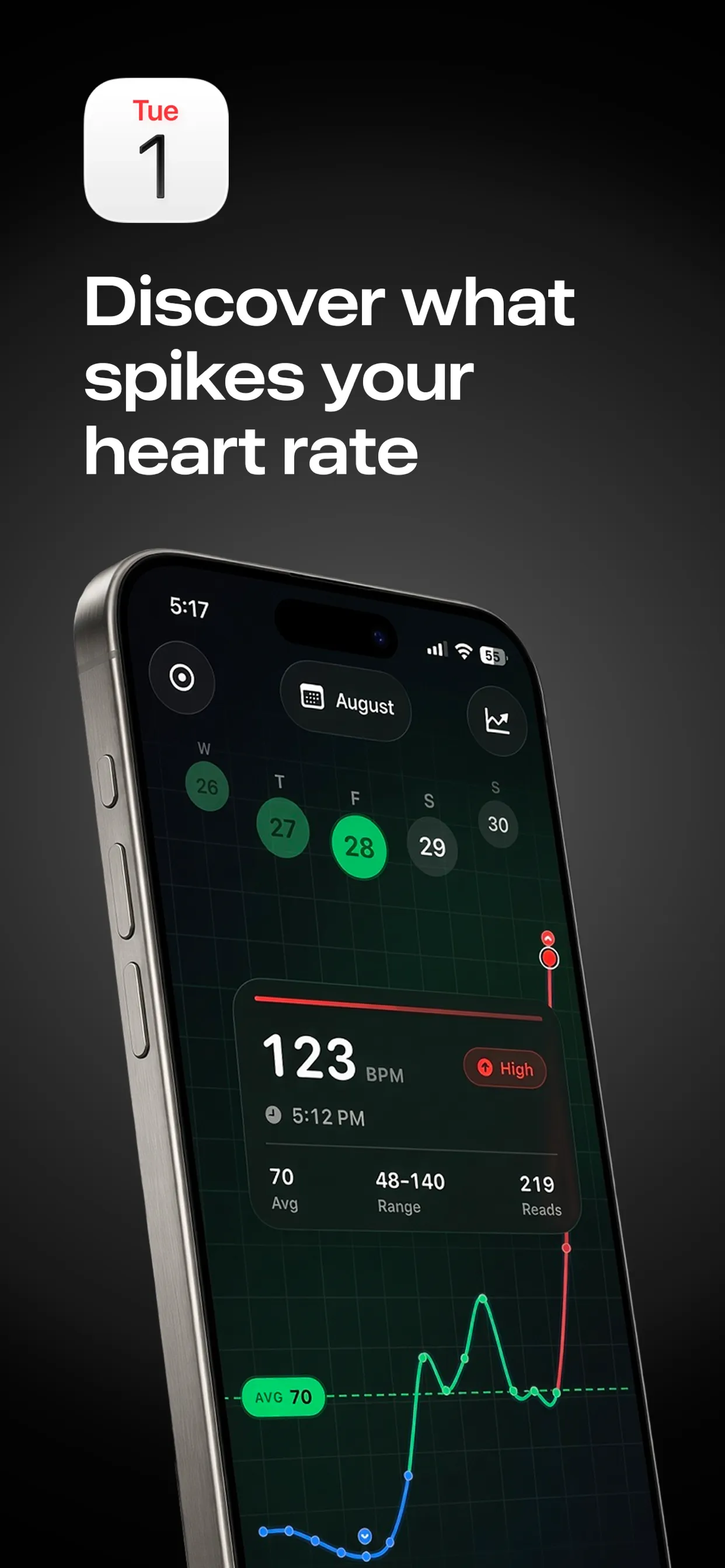
70 BPM lays your Apple Health heart rate over your calendar, so every spike has a name: the standup, the client call, the commute home.

Free to download · Optional Pro in-app purchases · Reads from Apple Health · Stays on your iPhone · Not a medical device; in an emergency, call 999 or 112

Lookout · Free dual camera recorder
Lookout: film the moment and the reaction
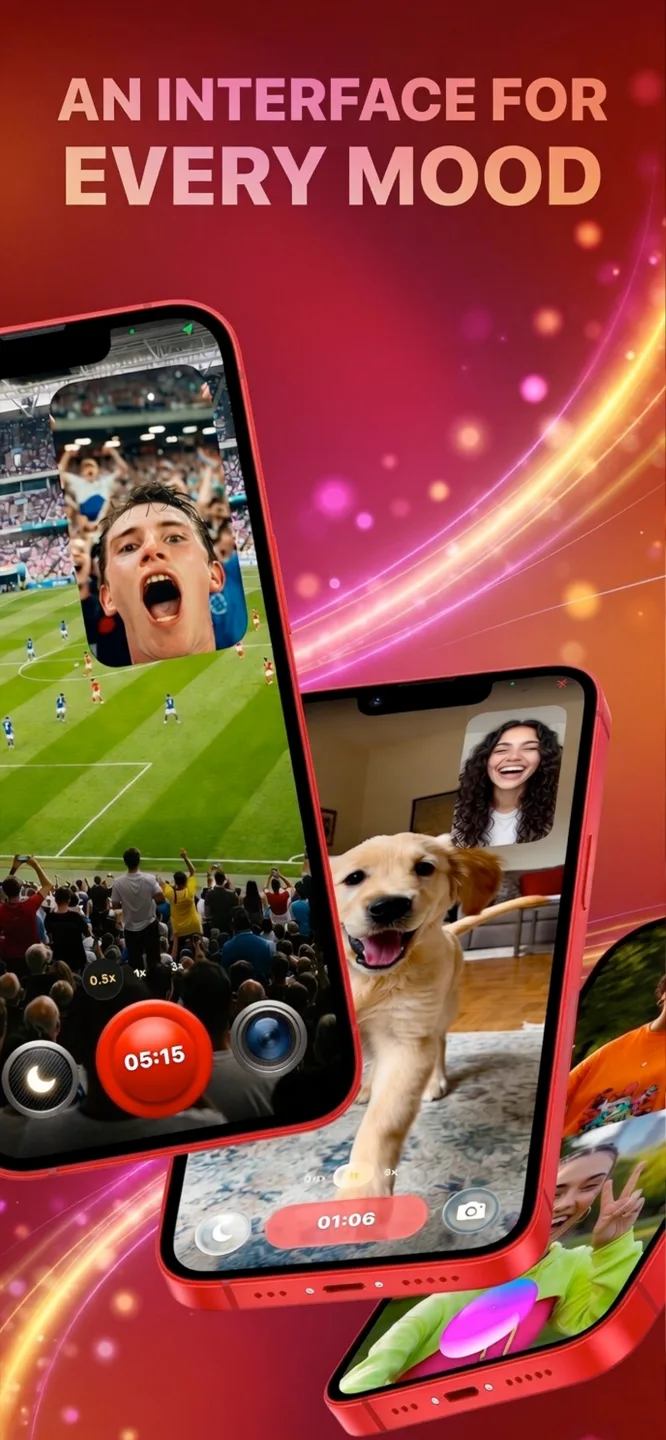
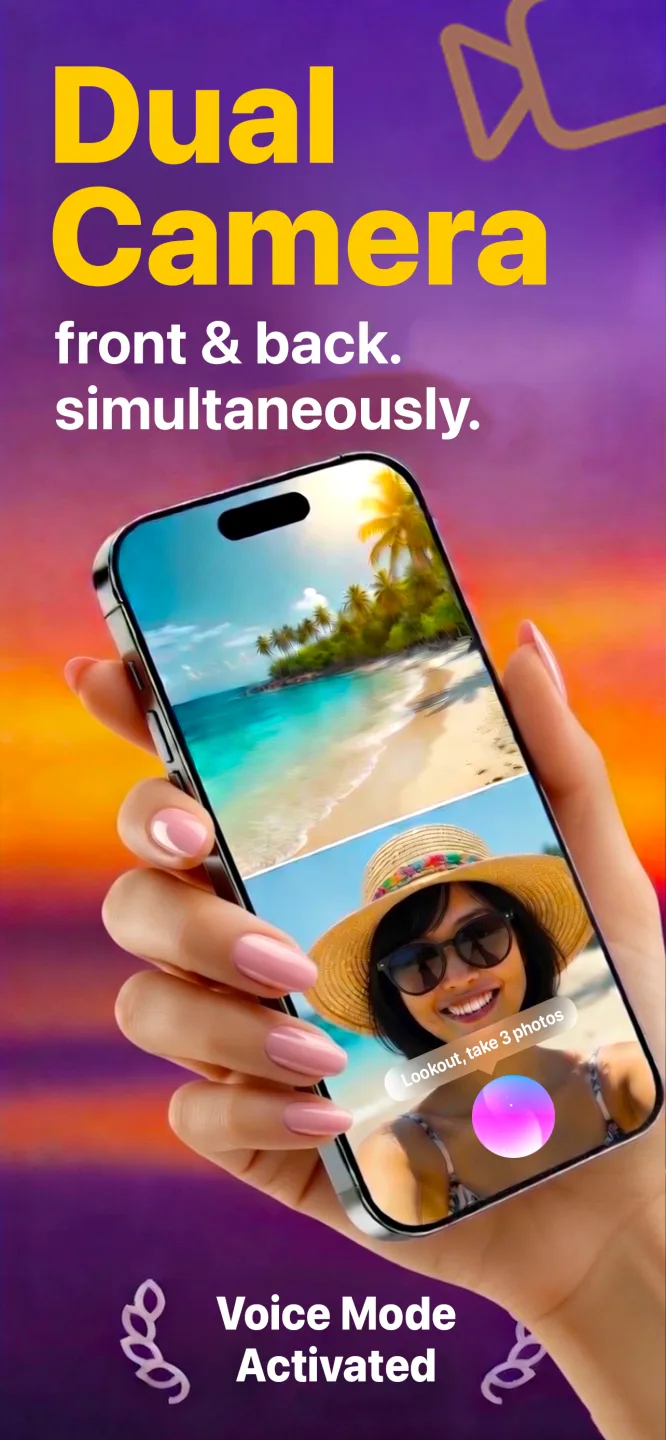
Lookout runs your iPhone's front and rear cameras in one capture session, so both angles are of the same moment and line up without manual syncing.
Free to download · Lookout Pro in-app purchase · iPhone, Mac & Apple Watch · Records, does not edit. What Lookout is

Down The Drone · Free AR shooter for iPhone
Down The Drone: an AR drone shooter that plays offline
Hostile drone swarms fly in over your sofa, down your hallway, across your backyard. Aim, fire and hold the line, right where you’re standing.
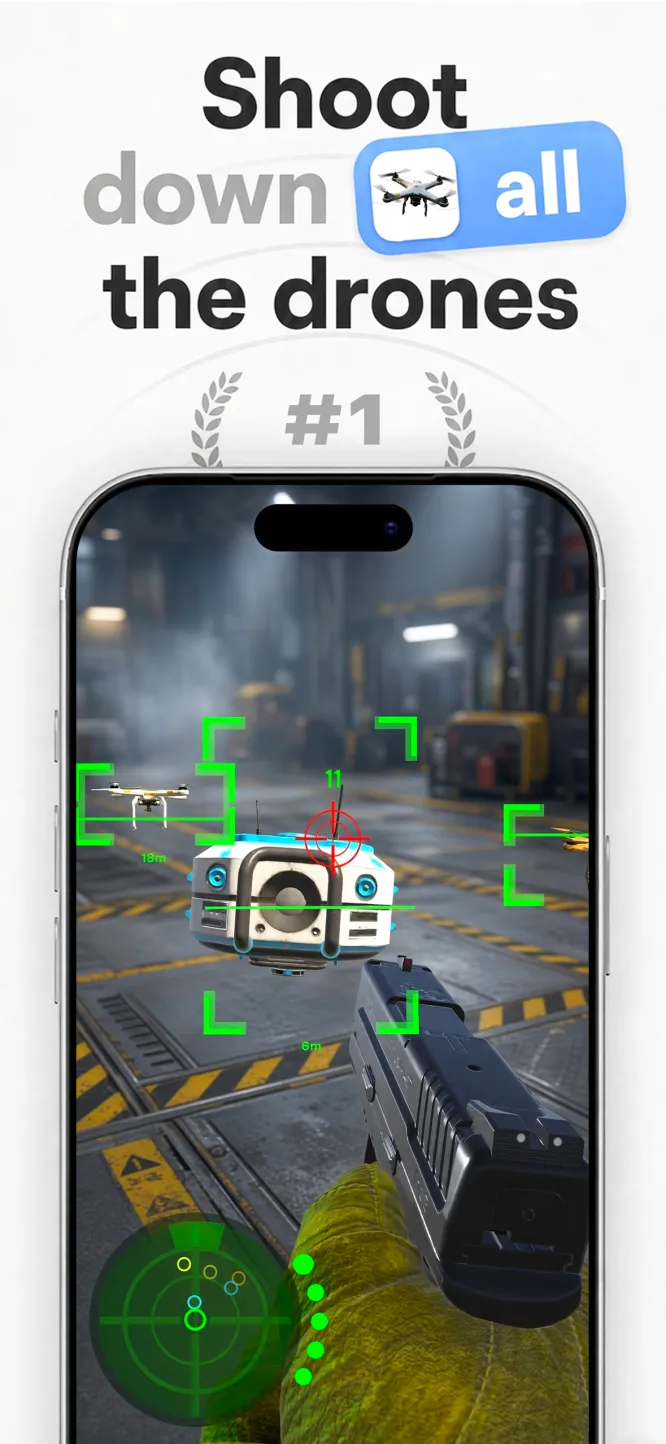
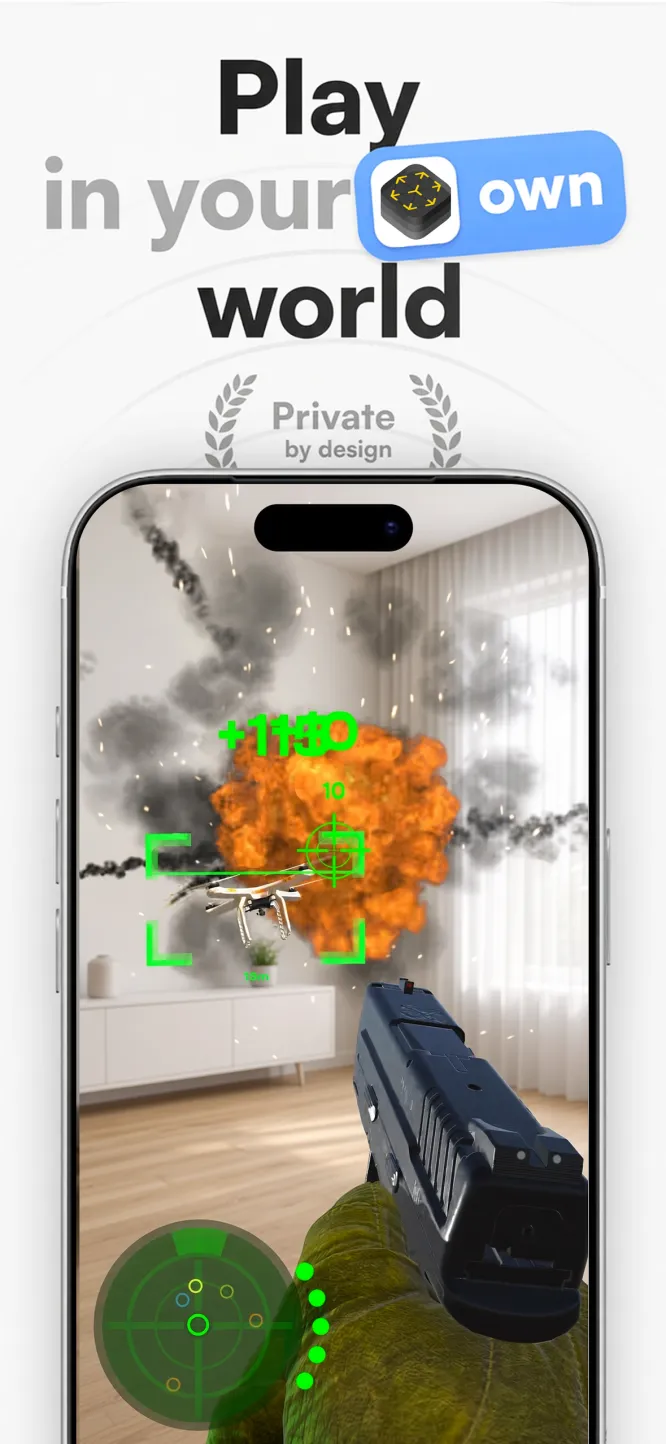
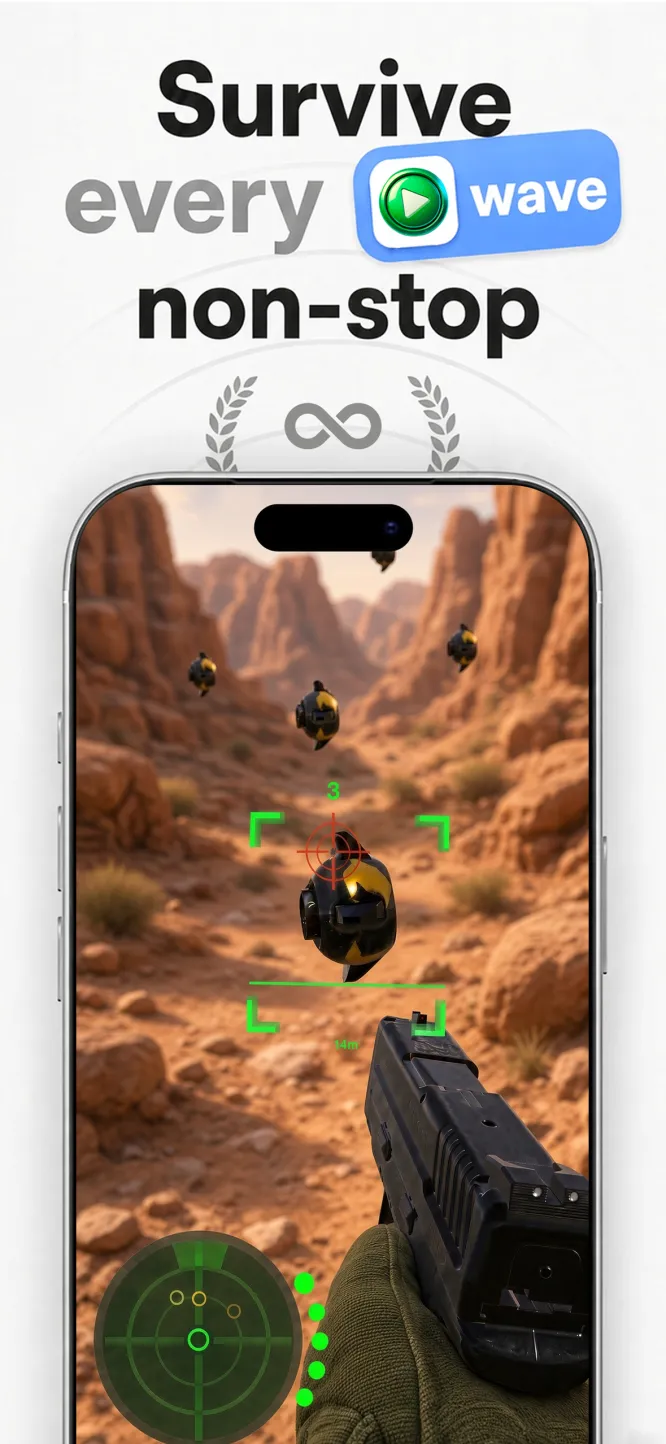
Free to download · No ads · Plays offline · Full game: in-app purchase

Captain Star · Endless space shooter
Captain Star: an easy first shmup
Easy to pick up, impossible to put down. Your ship goes where the pointer goes, each wave has one goal, and restarts are instant.



Mac App Store · Steam for Windows · Apple TV and iPad

Zero G Space Game · Arcade asteroid shooter for Mac
Zero G Space Game: the asteroid field that fights back
Spin, thrust, fire and wrap the screen. Real inertia, a shield you can time into a parry, hyperspace, and waves that keep escalating.


Mac App Store · Free to download · macOS 13+ · Two full waves free, then a one-time Unlock Full Game
2. Which controllers work with the new Apple TV 4K
Apple TV pairs with Bluetooth game controllers made for it, plus the popular console pads:
- Xbox: Xbox Wireless Controller with Bluetooth, Xbox Elite Wireless Controller Series 2 and Xbox Adaptive Controller.
- PlayStation: DualSense, DualSense Edge and DualShock 4.
- Nintendo: Joy-Con and Switch Pro Controller.
- MFi controllers: third-party pads labelled Made for iPhone/iPad/Apple TV.
Older Xbox controllers without Bluetooth do not pair. If in doubt, check that the controller is listed as compatible with Apple TV.
3. Put the controller into pairing mode
- Xbox: turn it on with the Xbox button, then hold the small Pair button on the top edge until the Xbox button flashes quickly.
- DualSense / DualSense Edge: hold the PS button and the Create button together until the light around the touchpad flashes.
- DualShock 4: hold the PS button and the Share button together until the light bar flashes.
- MFi and others: follow the maker’s instructions; most have a dedicated pairing button.
4. Pair it with the Apple TV
- On the Apple TV, open Settings.
- Go to Remotes and Devices, then Bluetooth.
- Wait for the controller to appear under other devices, then select it.
- When it shows as connected, press a button to check it responds.
To remove a controller later, select it in the same Bluetooth list and choose Unpair Device.
5. If the controller will not pair
- Unpair it from your console first. A pad still linked to an Xbox or PlayStation nearby may reconnect to it instead.
- Charge it. Low batteries cause dropped or failed pairing.
- Restart the Apple TV. Settings, System, Restart.
- Update the controller. Xbox controllers in particular may need a firmware update, done from an Xbox or a PC.
- Get closer. Pair from a couple of metres away with nothing metal in between.
6. Test it with a game
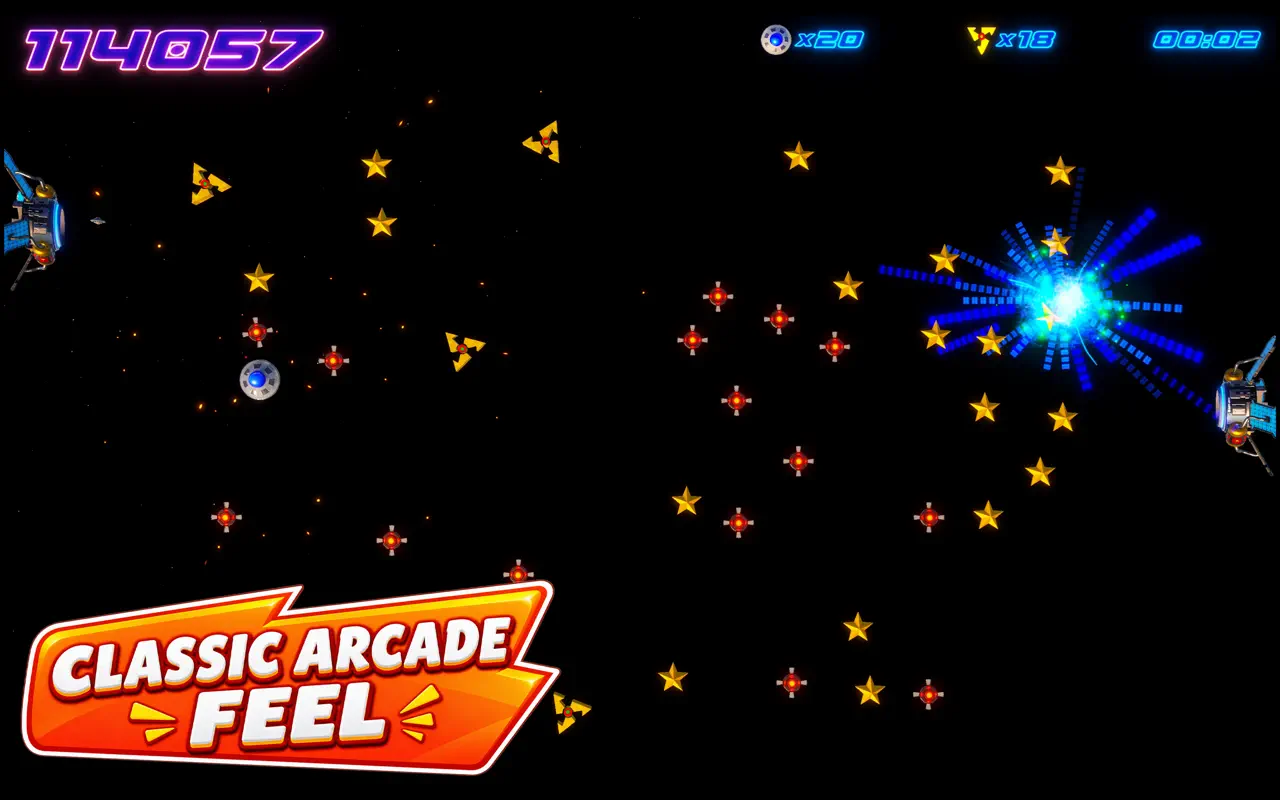
Captain Star is a quick way to check the pairing worked: open the App Store on the Apple TV, search for Captain Star and start a run. It is a top-down shooter where you steer a UFO through alien waves and chase a high score, with instant restarts and no ads, for a one-time US$0.99. The Apple TV version needs a paired controller and is not played with the Siri Remote. For more on the new box, read Apple TV games 2026: what to play on the new Apple TV 4K.
7. A note on 70 BPM
For winding down, 70 BPM overlays Apple Watch heart rate on your calendar, privately and on the device. It is not a medical device; in an emergency call 999 or 112.
8. Frequently asked questions
Can I use a PS5 controller on the new Apple TV 4K?
Yes. Hold the PS and Create buttons until the light flashes, then pair it in Settings, Remotes and Devices, Bluetooth.
Can I use an Xbox controller on Apple TV?
Yes, if it is a Bluetooth model. Hold the Pair button until the Xbox button flashes quickly, then select it in the Bluetooth list.
Can I play Captain Star with the Siri Remote?
No. Captain Star on Apple TV needs a paired game controller.
How many controllers can I pair?
You can pair more than one; each game decides how many players it supports.
Related: Apple TV games 2026 · Captain Star for Apple TV · Apple TV gaming vs a console · Best offline games for Android