

Envora · Bulk email from your iPhone
Envora: dispatch bulk emails without the markup
Cost-efficient bulk email for small businesses, freelancers and marketers, with no per-subscriber traps and no inflated tiers.
App Store · Free to download · iPhone
Option 1: BCC (fast, but not truly individual)
- Open Gmail and click Compose.
- Put your own address in To.
- Click Bcc and paste the recipient addresses.
- Write the message and send.
Recipients can't see each other, but everyone gets the same text with no name in it, and some inboxes treat large BCC sends with suspicion. Each BCC address still counts toward your daily limit.
Option 2: Gmail mail merge (individual and personalised, Workspace only)
Google's help page explains that mail merge sends each recipient a unique copy, swaps in tags like @firstname, and puts replies in separate threads. It also says mail merge needs an eligible plan: Workspace Individual, Business Standard or Plus, Enterprise Standard or Plus, or Education Standard or Plus (Google Help: mail merge).
- On a computer, open Gmail and click Compose.
- Next to the To line, click Use mail merge and turn it on.
- Add recipients, or click Add from a spreadsheet and pick a Google Sheet.
- Type
@in the body to insert a merge tag. - Click Continue, send yourself a preview, then Send all.
Google lists a cap of 1,500 mail merge recipients per day.
Option 3: Send through your Gmail with an app
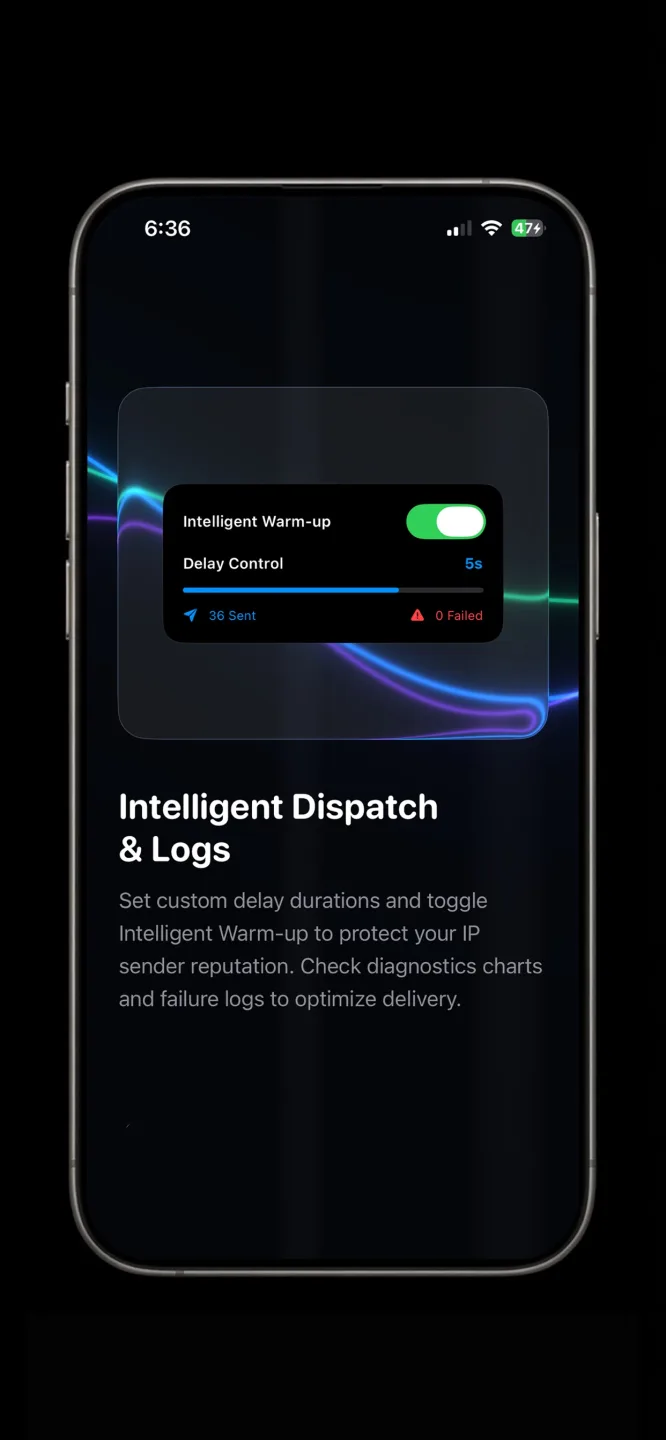
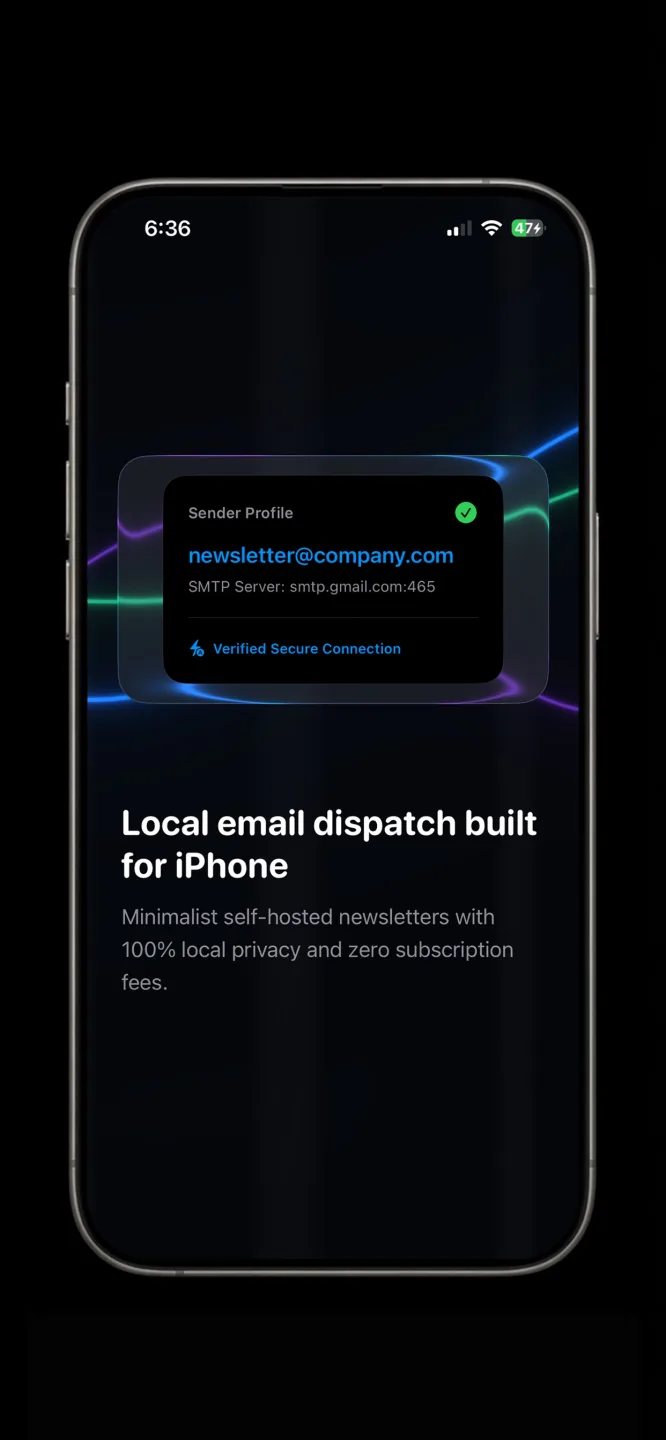
If you're on a free Gmail account, or you want to send from your phone, a sending app can work through your own account. Envora by KIDA Studios is an iPhone app that sends through your Gmail or Google Workspace account. You import contacts from a CSV, compose in text or your own HTML, preview it, and Envora sends in batches with a gap you choose between emails. Envora connects with a Google App Password, which needs 2-Step Verification on your account (Google Help: App Passwords). It's free to download and comes with a 7-day free trial; after that, a one-time $39.99 Lifetime Unlock keeps it working (US App Store price).
Which limits apply
Whatever you use, Google is still the sender, so Google's limits apply. Gmail Help says a personal account may hit an error after more than 500 recipients in one email or more than 500 emails in a day, and that sending usually works again within 1 to 24 hours (Google Help: sending limits). Workspace accounts have higher limits (Workspace sending limits).
Prepare your list before you send
- One address per row. Keep a spreadsheet with an email column and a first-name column. Gmail Help says mail merge contact data must sit in the sheet's first tab and contain only text, and that addresses with special characters are treated as invalid.
- Remove duplicates. Sort by email and delete repeats, so nobody gets the message twice and you don't waste daily quota.
- Check the names. A blank first-name cell turns “Hi @firstname” into “Hi ,”. Fill blanks with a neutral word such as “there”, or write a greeting that reads fine without a name.
- Only email people who expect it. Mail to people who never signed up draws spam reports, and those hurt every later send.
Test before the real send
- Send a preview to yourself. Gmail's mail merge has a Send preview step for this.
- Open the preview on a phone and on a computer, and check the name, the links and any images.
- Send to a few colleagues or friends on other providers, such as Outlook or iCloud, and ask whether it reached the inbox.
- Only then send to the full list.
Troubleshooting
- “You have reached a limit for sending mail”: you've hit Google's daily limit. Gmail Help says sending usually works again within 1 to 24 hours (Google Help). Send the rest of the list tomorrow.
- The “Use mail merge” icon is missing: your account is probably not on an eligible Workspace plan, or you're on the mobile app. The steps on Google's page are for Gmail on a computer (Google Help).
- A merge tag shows the wrong name: Gmail fills @firstname from Google Contacts when the person is saved there. Fix the contact, or use a spreadsheet column instead.
- Replies all land in one thread: that happens with a BCC send. With mail merge or individual sends, each reply arrives as its own conversation.
- Many messages bounced: Gmail Help warns that a lot of bounces to invalid addresses can stop you sending for up to 24 hours. Remove bad addresses before trying again.
Which option should you pick?
- Under about 20 people, one-off: BCC is fine.
- On an eligible Workspace plan and at a computer: use Gmail mail merge.
- On free Gmail, or on your iPhone: use a tool that sends message by message through your account, and plan batches under the daily limit.