

Envora · Bulk email from your iPhone
Envora: dispatch bulk emails without the markup
Cost-efficient bulk email for small businesses, freelancers and marketers, with no per-subscriber traps and no inflated tiers.
App Store · Free to download · iPhone
In Apple Mail
- Open Mail and tap the compose button.
- Tap the Cc/Bcc, From line to show the Bcc field.
- Put your own address in To, and the group in Bcc.
- Write your message and tap send.
Tip: type a few addresses, or paste a comma-separated list copied from Notes or a spreadsheet.
In the Gmail app
- Open the Gmail app and tap Compose.
- Tap the arrow next to To to reveal Cc and Bcc.
- Add recipients to Bcc, then send.
When everyone needs their own email
A BCC send is still one message. When you want each customer to get a separate email, ideally with their name, Gmail's mail merge does that. But Google's instructions for it start “On your computer”, and it needs an eligible Workspace plan (Google Help: mail merge).
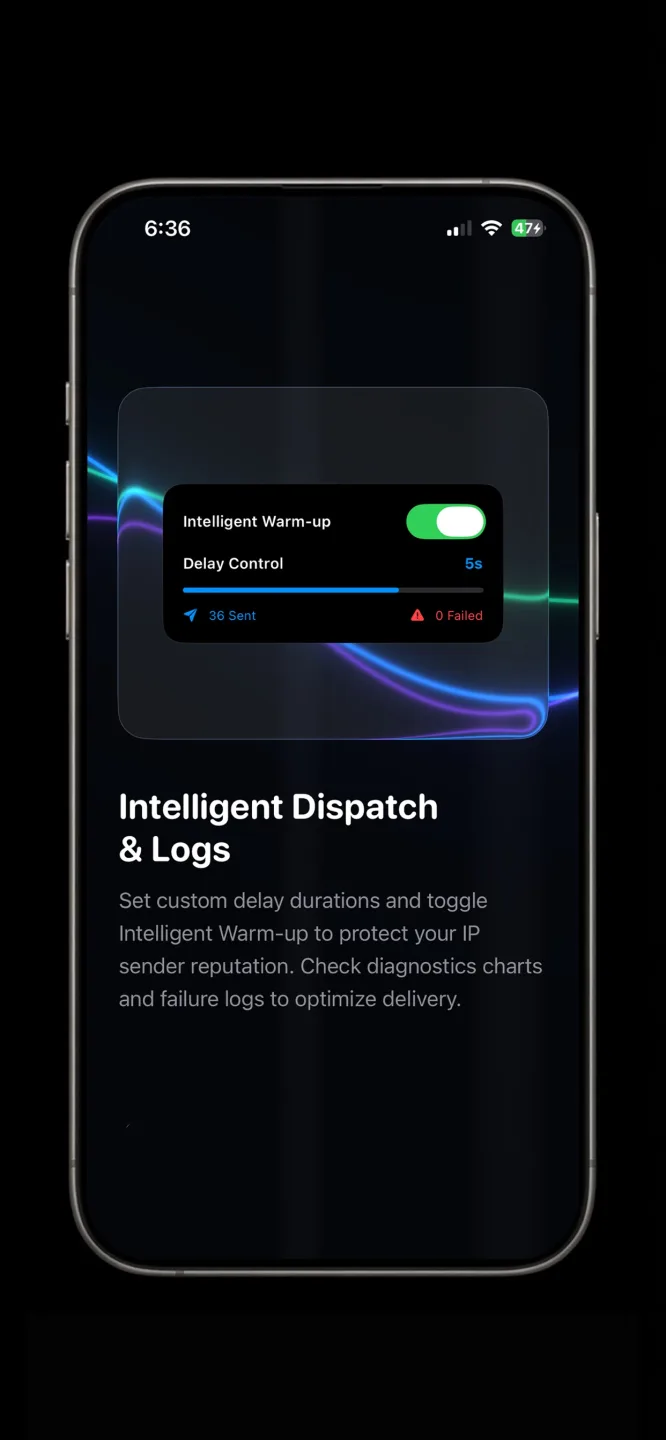
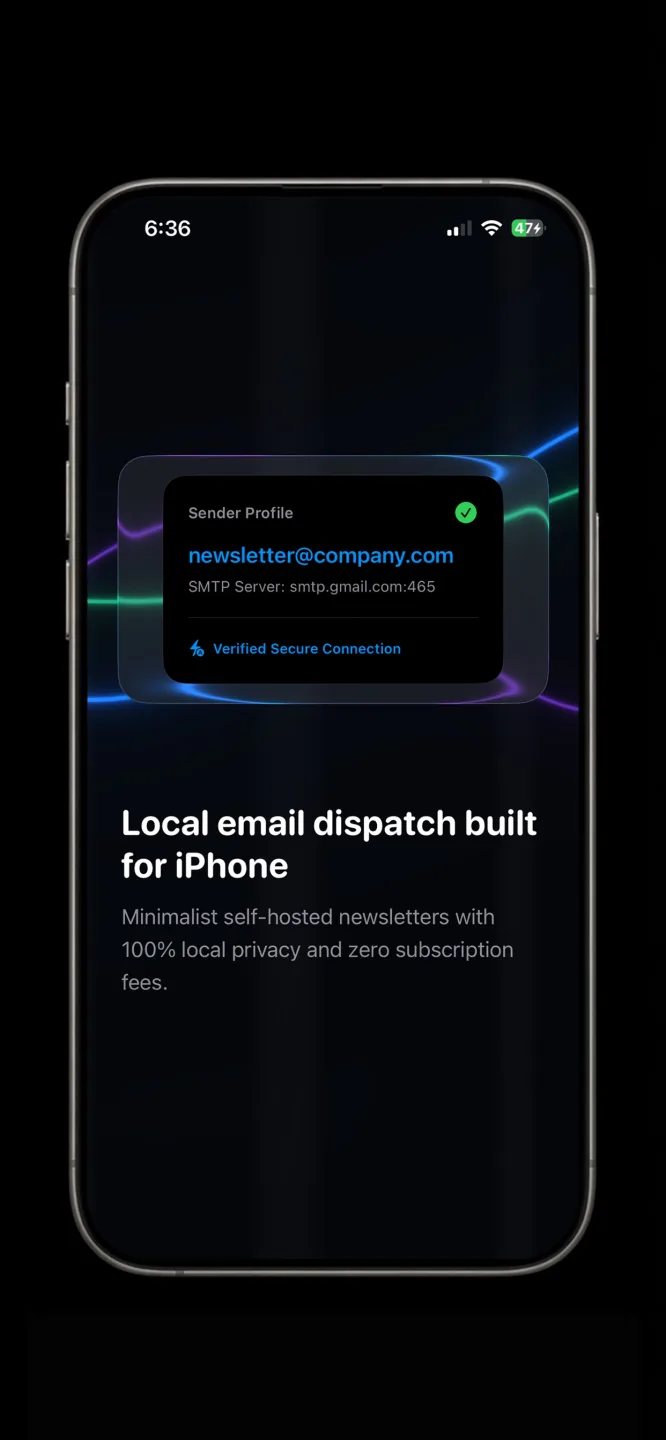
On an iPhone, Envora by KIDA Studios fills that gap. It connects to your Gmail or Google Workspace account and imports contacts from a CSV. You write in text or upload your own HTML and preview it for desktop and mobile. It then sends in batches with a delay you set, and keeps going in the background while you use other apps. Progress shows in Live Activities on the Lock Screen. It's free to download and comes with a 7-day free trial; after that, a one-time $39.99 Lifetime Unlock keeps it working (US App Store price).
Mind the daily limit
Gmail Help describes a limit of 500 recipients in one email, or 500 emails a day, for personal accounts, with sending usually restored within 1 to 24 hours (Google Help). Every Bcc address counts.
Before you hit send: a phone checklist
- Subject line: say what the email is about, such as “Shop closed Monday 3 Nov”, rather than “Update”.
- From name: check your account shows your business name, not a nickname. In Gmail this is in the account settings on a computer.
- Links: tap every link in a test email you send to yourself.
- Opt-out line: end with “Reply ‘stop’ and I'll take you off this list”, and keep that promise.
- Attachments: a large file sent to many people multiplies the load. Link to a shared file instead.
Where your contact list ends up
A BCC send from Mail or Gmail keeps the addresses in your account. Many email marketing platforms instead ask you to upload your list to their servers. Envora keeps contacts on your iPhone and sends through your Google account, so your list isn't uploaded to a third-party marketing service.
Paste a whole list at once
If your addresses are in a spreadsheet, copy the email column. Paste it into Notes, replace line breaks with commas, then copy the result into the Bcc field. iPhone Mail and the Gmail app both split a comma-separated list into separate recipients. Check the count before sending: a stray space or a missing @ makes an address invalid.
Make a reusable group
- Contacts lists: recent iOS versions let you create lists in the Contacts app. Some versions also let you type the list's name into a Mail address field to add everyone; check that it works on yours.
- Google Contacts labels: in Gmail on a computer, Google says you can put contacts under a label and add the label in the To line (Google Help). Adding a label on the phone app may not work the same way.
- A CSV file: keep a master CSV in Files or iCloud Drive. Sending apps such as Envora import it directly.
Troubleshooting on iPhone
- The email sits in the Outbox: a very long recipient list or a large attachment can make your provider refuse it. Split the list or remove the attachment.
- “Limit reached” from Gmail: wait. Gmail Help says sending usually returns within 1 to 24 hours (Google Help).
- Someone replied to everyone: they were in To or Cc, not Bcc. Check the field before you send.
- Messages go to spam: group sends with no personal greeting and no way to opt out look like spam. Individual sends with a name and an unsubscribe line help.
Sending individual emails with Envora
- Install Envora and sign in with your Gmail or Workspace address and a Google App Password. App Passwords need 2-Step Verification on your account.
- Import your contacts from a CSV, or add them by hand.
- Write in text or upload an HTML design, then preview it for desktop and mobile.
- Set the delay between emails, and start the send. It keeps going in the background, with progress in Live Activities.
- Check the history to see what was sent, what failed and what is pending.